
New Feature: Workflow Editor Modes for Focused Editing
April 12, 2026
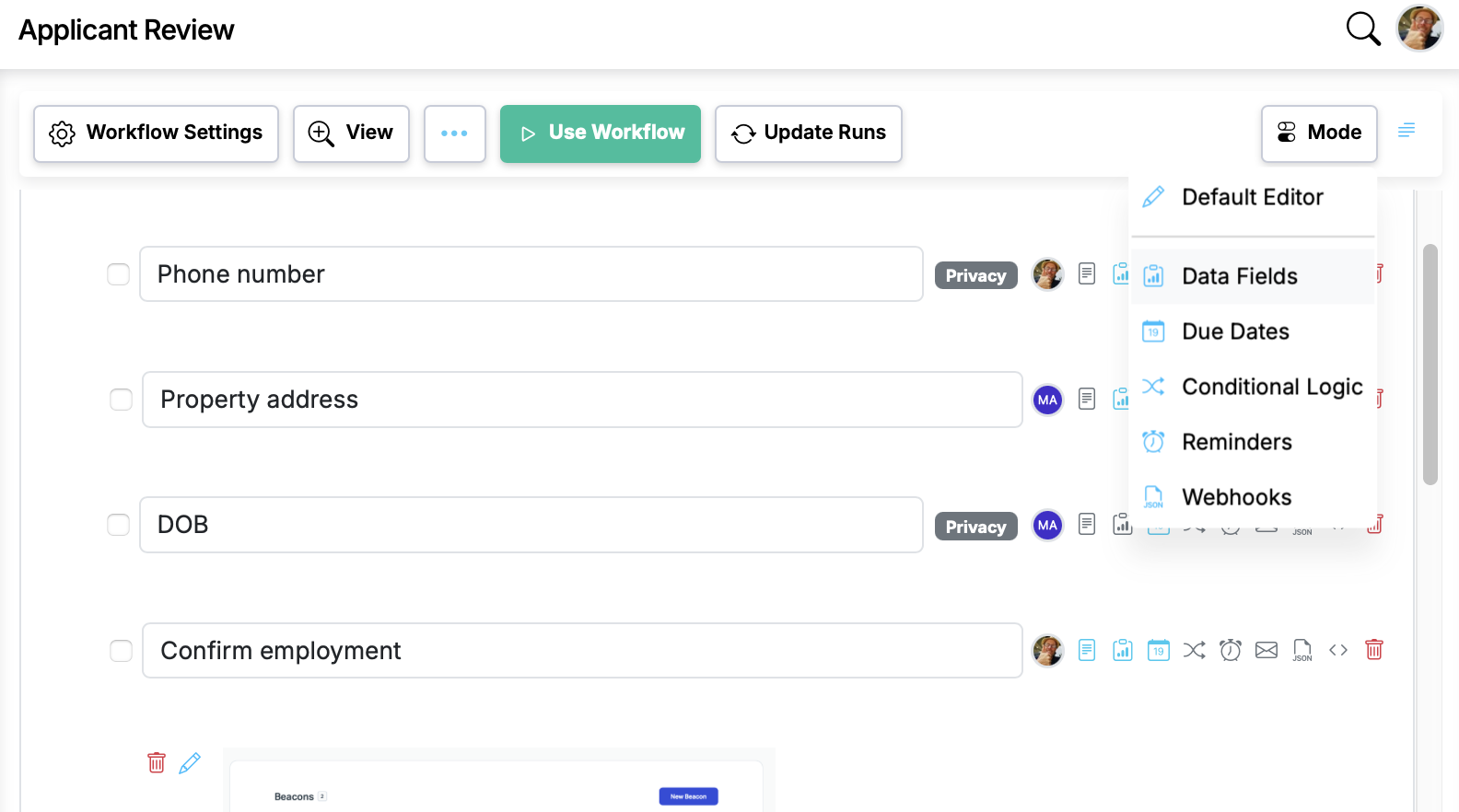
Complex workflows have a lot going on — data fields, due dates, conditional logic, reminders, webhooks — all layered on top of each other. When you're trying to audit one dimension (say, "are all our due dates correct?"), the other dimensions are visual noise that makes the task harder than it needs to be.
Editor modes let you strip away everything except the dimension you're working on.
The five modes
A new dropdown in the editor toolbar switches between focused views:
- Data Fields — see and edit the form fields on every step.
- Due Dates — review and set relative due dates across the workflow.
- Conditional Logic — see which steps show or hide based on rules.
- Reminders — audit and configure reminder notifications.
- Webhooks — see which steps fire webhooks and edit their configuration.
How it looks
When you pick a mode, every step collapses to its title, and the dimension you're working on appears directly underneath with its own edit button. Everything else gets out of the way. You get a clean, scannable view of the entire workflow through one lens.
When to use modes
- Auditing — quickly review all due dates or reminders across a 30-step workflow without scrolling through expanded step editors.
- Setup — when building a new workflow, configure all data fields first, then switch modes to set up due dates, then conditional logic.
- Troubleshooting — if a webhook isn't firing as expected, switch to Webhooks mode to see the configuration across all steps at a glance.
- Training — show a colleague exactly how conditional logic works across a workflow without other details competing for attention.
Modes don't change what you can do — they change what you see. Every edit you make in a mode is the same as editing in the default view. It's purely about focus.
See the full feature details for a video demo.