
Latest features
Set run data choices when configuring a schedule
Set run data choices when configuring a schedule
Released June 13, 2025
Predefine the data each scheduled run should use—choose values per occurrence to standardize and save time
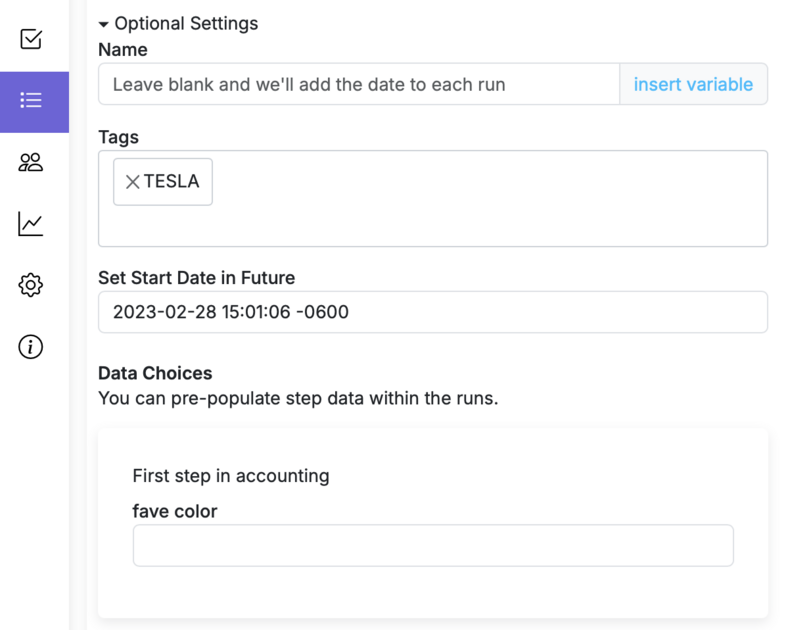
When creating a recurring schedule, set the data values each run will start with (e.g., location, contact, service type). Each occurrence can have its own choices, eliminating manual entry.
Set up
- Open Schedule Recurring Run for a workflow.
- Choose the cadence (daily/weekly/monthly, etc.).
- In the optional settings section you'll see Data Choices, select values for your run fields
- Save.
How it helps
- Consistent inputs across runs; fewer errors from less data entry.
- Faster kickoff—no repeated data entry.
Notes
- Values are prefilled at run start and can be edited by permitted users.
- Per-occurrence choices override defaults for that instance only.
Example
Monthly safety inspection (Site A): Every run is preset to Site=Plant A, Supervisor=J. Lee, and OnCall={{SafetyPhone}}.
Set run data choices when configuring a schedule is live in every account
Open Manifestly to try it, or book a walkthrough with our team.